
If you work with PHP projects long enough, you’ll eventually run into a Composer update that just refuses to cooperate.
- Why Composer Fails With Dependency Resolution Errors
- The Real Cause: “Platform Requirements” Blocking the Update
- The Fix That Worked: --ignore-platform-reqs
- What Does --ignore-platform-reqs Actually Do?
- Step-by-Step: How to Use This Fix Properly
- ✅ Step 1: Try updating normally
- ✅ Step 2: Run update with the ignore flag
- ✅ Step 3: Confirm what was updated
- ✅ Step 4: Run your tests (recommended)
- When Should You Use --ignore-platform-reqs?
- A Safer Alternative (Optional): Ignore Only PHP Requirements
- Common Questions (FAQ)
- ✅ Why does Composer block updates even if the package seems fine?
- ✅ Does this flag update everything in my project?
- ✅ Will this break my project?
- Final Thoughts
A few days ago, I was trying to update a Composer package as part of a project update. Nothing fancy — just a simple update command. But Composer had other plans.
Instead of updating, it threw the dreaded error:
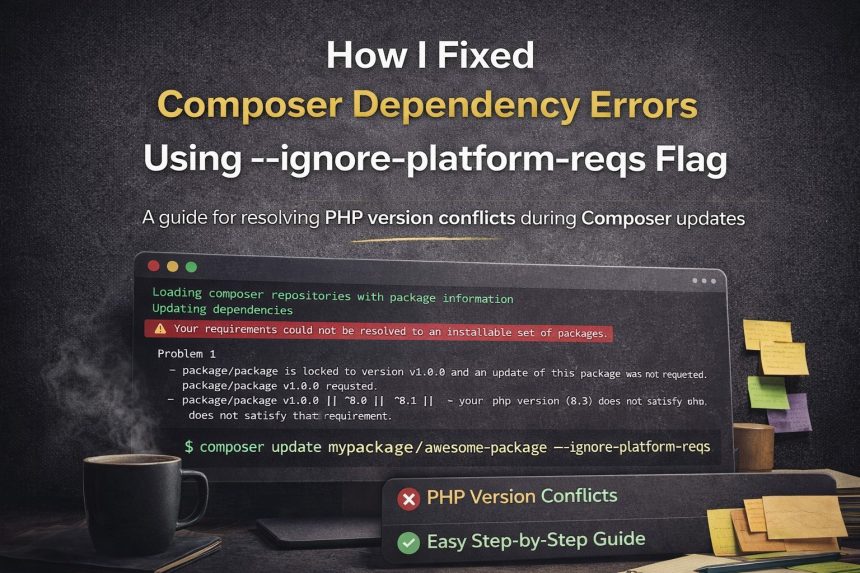
Your requirements could not be resolved to an installable set of packages
And along with it… a big list of dependency conflicts and platform requirement issues.
At first glance, it looked like a classic version mismatch issue. But the error list wasn’t just about one thing — it was a mix of locked packages, platform restrictions, and version constraints that prevented Composer from resolving the dependencies.
After a bit of digging (and a few frustrating retries), the solution was surprisingly simple:
composer update vendor/package --ignore-platform-reqs
That one flag solved the problem instantly.
In this post, I’ll explain why this happens, what the --ignore-platform-reqs flag actually does, and when you should (and shouldn’t) use it.
Why Composer Fails With Dependency Resolution Errors
Composer is strict — and that’s actually a good thing.
When you run an update command, Composer tries to find a version of every dependency that satisfies all of these:
- Package version constraints
- Locked versions inside
composer.lock - PHP version compatibility rules
- Required PHP extensions (
ext-*) - Required platform libraries
If even one package doesn’t match those rules, Composer stops the update entirely and throws the classic “could not be resolved” error.
That’s why Composer update errors can feel confusing — because you’re updating one package, but Composer is trying to keep the entire dependency graph stable.
The Real Cause: “Platform Requirements” Blocking the Update
In my case, Composer was complaining about platform requirement issues.
That includes things like:
- PHP version constraints (e.g., a package only supports PHP 8.2 and below)
- PHP extensions (e.g.,
ext-gd,ext-mbstring,ext-curl) - Platform-specific libraries
Sometimes you get errors like:
- “package X requires php ^8.1”
- “ext-something is missing”
- “locked to version Y and an update was not requested”
- “does not satisfy that requirement”
At that point, you have two options:
✅ Fix your local platform to match every requirement
or
✅ Tell Composer to temporarily ignore those platform checks
That’s where the magic flag comes in.
The Fix That Worked: --ignore-platform-reqs
Here’s the command that solved it:
composer update vendor/package --ignore-platform-reqs
Once I added --ignore-platform-reqs, Composer stopped blocking the update and successfully resolved the dependency chain.
This flag tells Composer:
“Ignore PHP version and extension requirements during dependency resolution.”
So instead of refusing to install packages, Composer proceeds with updates and writes the resolved versions to your lock file.
What Does --ignore-platform-reqs Actually Do?
Composer normally checks your platform requirements before installing or updating packages.
That includes:
✅ PHP version
✅ PHP extensions (like mbstring, curl, openssl, gd)
✅ Required system libraries
When you add:
--ignore-platform-reqs
Composer skips those checks.
Important: It doesn’t magically install missing extensions, and it doesn’t change your PHP version.
It simply ignores those requirement checks during resolution.
That means Composer can update packages even if your current machine doesn’t meet the platform constraints.
Step-by-Step: How to Use This Fix Properly
✅ Step 1: Try updating normally
Start with the normal update command:
composer update vendor/package
If you get dependency resolution errors, move to step 2.
✅ Step 2: Run update with the ignore flag
composer update vendor/package --ignore-platform-reqs
Composer should now resolve dependencies without blocking due to platform rules.
✅ Step 3: Confirm what was updated
After the update, check the package version:
composer show vendor/package
And check what changed in your lock file:
git diff composer.lock
✅ Step 4: Run your tests (recommended)
Even if the update works, always verify your application still runs correctly.
composer test
Or your project’s test pipeline.
When Should You Use --ignore-platform-reqs?
This flag is extremely useful — but only if you understand when it makes sense.
✅ Use it when:
- You’re updating dependencies and your environment doesn’t match every requirement
- You know the dependency is safe to upgrade
- You’re working in CI/CD pipelines
- You’re updating something that’s compatible, but Composer is being overly strict
- You want to unblock updates and handle platform requirements separately
❌ Avoid it when:
- You’re blindly upgrading dependencies without testing
- Your application depends heavily on system extensions or native packages
- You’re deploying immediately without validation
A good way to think of it:
✅ It’s a practical tool for fixing Composer resolution problems
❌ It’s not a replacement for proper environment compatibility
A Safer Alternative (Optional): Ignore Only PHP Requirements
Sometimes you don’t want to ignore everything. You can ignore only PHP version requirements:
composer update vendor/package --ignore-platform-req=php
This still keeps extension checks intact, while bypassing PHP version constraints.
Common Questions (FAQ)
✅ Why does Composer block updates even if the package seems fine?
Because Composer checks your platform against package requirements before installing anything. Even if it might work, Composer won’t take the risk.
✅ Does this flag update everything in my project?
No. It updates only what the command targets, but Composer might update additional dependencies needed to resolve the graph.
✅ Will this break my project?
It can if you’re not careful. That’s why running tests after updating is important. Most of the time it’s safe if you know your environment supports the updated packages.
Final Thoughts
Composer dependency errors can feel like a dead end — especially when the error output is long and hard to interpret.
But in many cases, the problem isn’t your code. It’s Composer being strict about platform requirements during dependency resolution.
If you need to unblock an update quickly, this command can save you hours:
composer update vendor/package --ignore-platform-reqs
Just remember: always test your project after updating — and treat this flag as a powerful tool, not a permanent habit.