
I had to install Docker on AlmaLinux recently because I was setting up a fresh server for a few self-hosted apps (and later, Discourse). I came from CentOS, so I expected it to be “dnf install docker and done”… but on AlmaLinux (RHEL-family), the clean approach is using Docker’s official repository.
- What you need before starting
- Step 1: Update your AlmaLinux system
- Step 2: Install the required DNF plugin
- Step 3: Add Docker’s official repository (recommended)
- Step 4: Install Docker Engine (plus Compose plugin)
- Step 5: Start Docker and enable it on boot
- Step 6: Test Docker (hello-world)
- Optional: Run Docker without sudo (recommended)
- Optional: Check Docker Compose
- Troubleshooting (the common issues)
- Useful links
- Final thoughts
This guide is the exact process I used—simple, repeatable, and easy to maintain when you upgrade later.
What you need before starting
- An AlmaLinux server (8/9 works great)
- A user with
sudoprivileges - Internet access (to pull packages from Docker’s repo)
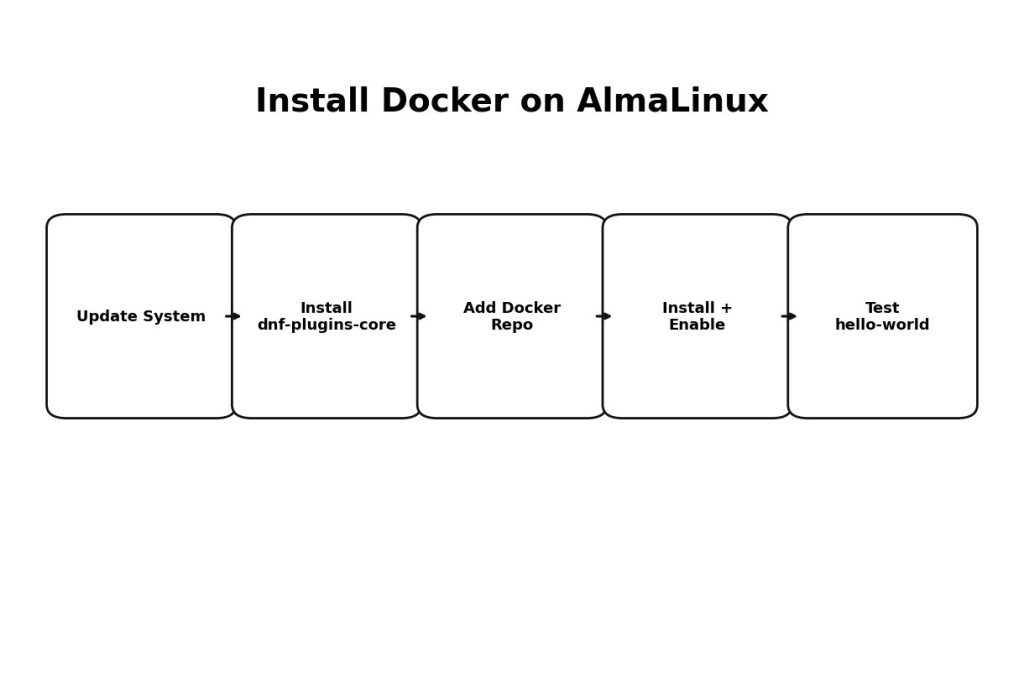
Step 1: Update your AlmaLinux system
I always update first. It avoids dependency weirdness later.
sudo dnf -y updateStep 2: Install the required DNF plugin
To add external repositories cleanly, you’ll want dnf config-manager, which comes from dnf-plugins-core.
sudo dnf install -y dnf-plugins-coreStep 3: Add Docker’s official repository (recommended)
This is the part most people miss. AlmaLinux doesn’t ship Docker CE in the default repo the way people remember from older CentOS days, so adding Docker’s repo keeps installs and upgrades consistent.
sudo dnf config-manager --add-repo https://download.docker.com/linux/centos/docker-ce.repoStep 4: Install Docker Engine (plus Compose plugin)
For a modern setup, I recommend installing Docker CE plus the Buildx and Compose plugins. That way you can run docker compose without extra hacks.
sudo dnf install -y docker-ce docker-ce-cli containerd.io docker-buildx-plugin docker-compose-pluginQuick note: if you only want the minimal packages, you can install just docker-ce, docker-ce-cli, and containerd.io (that’s how my original quick answer was written). But for most servers, the plugins are worth it.
Step 5: Start Docker and enable it on boot
sudo systemctl enable --now dockerConfirm Docker is running:
sudo systemctl status docker
docker --version
Step 6: Test Docker (hello-world)
This is my favorite sanity check because it verifies the service and the runtime in one shot.
sudo docker run hello-worldOptional: Run Docker without sudo (recommended)
By default, Docker needs root privileges. If this is your own server and you want convenience, add your user to the docker group.
sudo usermod -aG docker $USERThen log out and log back in (or reboot). After that, try:
docker run hello-worldOptional: Check Docker Compose
If you installed the Compose plugin, this should work:
docker compose versionTroubleshooting (the common issues)
Docker service won’t start
Check logs first:
sudo journalctl -u docker --no-pager -n 200Permission denied when running docker (without sudo)
You probably added the user to the docker group but didn’t re-login yet. Re-login or reboot, then try again.
Useful links
- Docker’s official install guide (RHEL/CentOS-family)
- How to install Discourse on AlmaLinux (my next step after Docker)
Final thoughts
That’s it. Once you install Docker on AlmaLinux using the official repo, everything becomes easier—upgrades are predictable, Compose works normally, and deploying apps becomes “pull + run” instead of a long dependency mess.