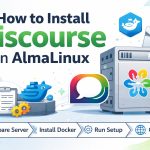

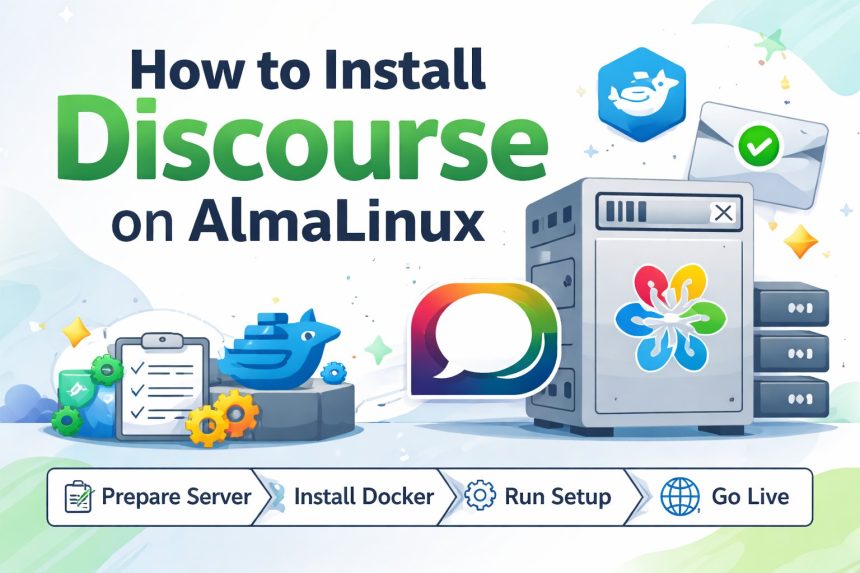
I needed a fresh Discourse install on an AlmaLinux server while I was reorganizing my infrastructure. Most guides assume Ubuntu, and I kept bumping into small “RHEL-family” differences that slow you down when you just want the forum online.
- What you need before you start (don’t skip this)
- Step 1: Update the server + open firewall for HTTP/HTTPS
- Step 2: Install Docker Engine (the part that trips most people)
- Step 3: Install Git and clone the official Discourse Docker setup
- Step 4: Run the interactive installer (discourse-setup)
- Step 5: Visit your domain and complete the web setup
- Common problems I ran into (and how I fixed them)
- 1) “My site loads, but I can’t become admin because email is broken”
- 2) “I changed app.yml but nothing happened”
- 3) “Where do I check logs?”
- Handy maintenance commands (bookmark these)
- Final thoughts
So I wrote down the exact process I used on AlmaLinux (works on AlmaLinux 8/9). This is the Docker-based method Discourse expects, and it’s the cleanest way to keep upgrades simple later.
What you need before you start (don’t skip this)
I learned this the hard way: if you try to “wing it” without a proper domain + SMTP, Discourse installation becomes painful. Before you touch the server, make sure you have these ready:
- A domain or subdomain (example:
forum.yourdomain.com). Discourse is not meant to run from a raw IP address. - DNS A record pointed to your server’s public IP.
- SMTP credentials (Mailgun / SES / Postmark / your provider). Discourse relies heavily on email for account creation and notifications.
- A VPS with enough resources: I recommend at least 2GB RAM for a smoother install. 1GB can work, but only if you add swap.
Quick tip: If SMTP isn’t ready yet, you can still finish the install and create an admin user from the console later. I include that workaround in the troubleshooting section below.
Step 1: Update the server + open firewall for HTTP/HTTPS
On AlmaLinux, firewalld is usually enabled by default. I opened HTTP/HTTPS first so I wouldn’t forget later.
sudo dnf -y update

# open web ports (recommended way: services)
sudo firewall-cmd --permanent --add-service={http,https}
sudo firewall-cmd --reload

# optional: confirm what’s open
sudo firewall-cmd --list-services
Step 2: Install Docker Engine (the part that trips most people)
AlmaLinux ships with Podman in many setups, and at first I thought, “containers are containers, right?”… nope. Discourse’s supported install path expects Docker-style tooling. So I installed Docker Engine from the official repo.
# Install repository helper tools
sudo dnf -y install dnf-plugins-core

# Add Docker's official repo (CentOS/RHEL-family; works fine on AlmaLinux)
sudo dnf config-manager --add-repo https://download.docker.com/linux/centos/docker-ce.repo

# Install Docker Engine + plugins
sudo dnf -y install docker-ce docker-ce-cli containerd.io docker-buildx-plugin docker-compose-plugin

# Start Docker now + enable on boot
sudo systemctl enable --now docker

# sanity check
sudo docker run hello-world
If the hello-world container runs, you’re good. If not, fix Docker first—Discourse depends on it.
Step 3: Install Git and clone the official Discourse Docker setup
Discourse’s Docker install uses the official discourse_docker repo. I keep it in /var/discourse like the official guides do.
sudo dnf -y install git

# Clone into /var/discourse
sudo -s
git clone https://github.com/discourse/discourse_docker.git /var/discourse
cd /var/discourse

# lock down the containers directory (recommended)
chmod 700 containers
Step 4: Run the interactive installer (discourse-setup)
This is the “easy button”. The setup script asks for your forum hostname, admin email, SMTP details, and Let’s Encrypt email for SSL.
cd /var/discourse
./discourse-setup
You’ll see prompts like these (example values):
Hostname for your Discourse? [discourse.example.com]:
Email address for admin account(s)? [[email protected],[email protected]]:
SMTP server address? [smtp.example.com]:
SMTP port? [587]:
SMTP user name? [[email protected]]:
SMTP password? [pa$$word]:
Let's Encrypt account email? (ENTER to skip) [[email protected]]:
After that, it generates containers/app.yml and starts “bootstrapping” the container. On my VPS, it usually takes a few minutes. Go grab coffee and don’t interrupt it.
Step 5: Visit your domain and complete the web setup
If DNS is pointed correctly and your firewall is open, your forum should load at:
https://forum.yourdomain.com
Register the admin account using the email you entered. If email is configured correctly, you’ll receive activation emails and you’re done.
Common problems I ran into (and how I fixed them)
1) “My site loads, but I can’t become admin because email is broken”
This happens when SMTP credentials are wrong, blocked, or the provider requires extra DNS records (SPF/DKIM). The fastest way to regain control is creating the admin from inside the container, then fixing email from the admin panel.
cd /var/discourse
./launcher enter app
rake admin:create
After that, log in as the admin user you created and fix SMTP settings properly.
2) “I changed app.yml but nothing happened”
Discourse won’t apply config changes until you rebuild the container. Any time you edit /var/discourse/containers/app.yml, rebuild:
cd /var/discourse
./launcher rebuild app
3) “Where do I check logs?”
When something fails during install or upgrade, logs usually tell you exactly what’s wrong:
cd /var/discourse
./launcher logs app
Handy maintenance commands (bookmark these)
# rebuild after updates or config changes
cd /var/discourse
git pull
./launcher rebuild app

# enter the container shell
./launcher enter app

# view logs
./launcher logs app
Final thoughts
Even though Discourse “officially” leans toward Ubuntu in many guides, the Docker-based approach works perfectly fine on AlmaLinux as long as Docker is installed properly and your domain + SMTP are ready from the start.
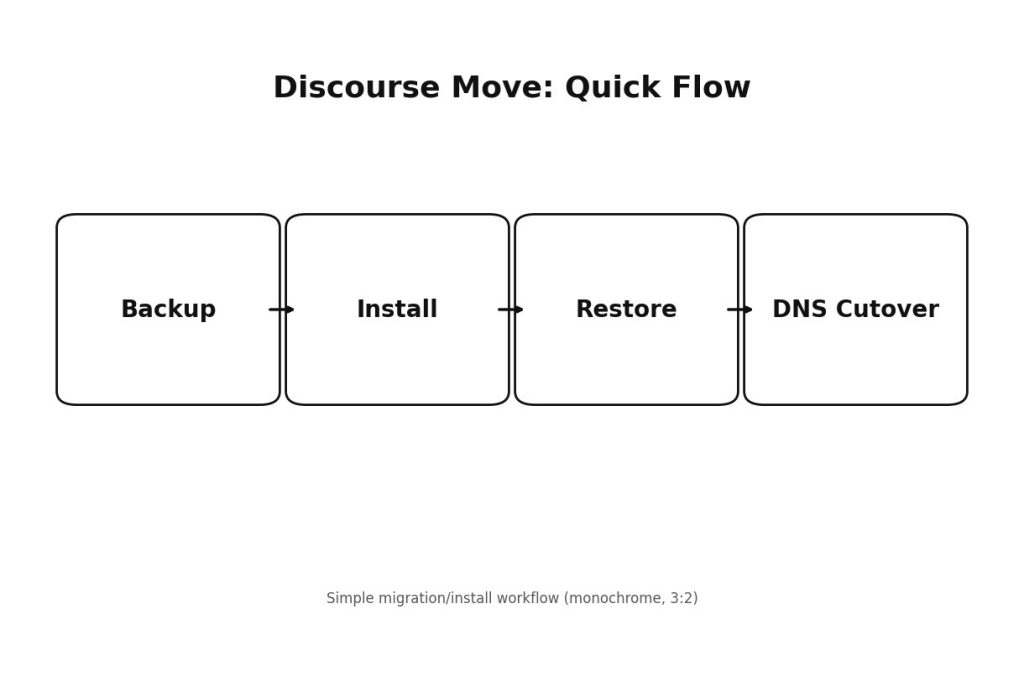
If you’re installing Discourse as part of a migration (like moving to a new server or restructuring communities), do yourself a favor: test SMTP first, confirm DNS, then run the setup once. That single habit saves hours.