
How7o
  • Home
  • Marketing
    MarketingShow More
    15 Must-See Charts on the State of Marketing
    6 Min Read
    The Beginner’s Guide about Facebook Advertising
    6 Min Read
    64 Creative Marketing Ideas to Boost Your Business
    6 Min Read
  • Resouce
    ResouceShow More
    5 Must-Have Digital Marketing Data Sources
    6 Min Read
    Archival Solution Deployment Best Practices
    6 Min Read
    How Secure Your Mobile Device in Six Steps
    6 Min Read
    5 Effective Ways to Increase Market Share Online
    6 Min Read
    Tips Debugging with CMS code Optimization Quick
    6 Min Read
  • Features
    FeaturesShow More
    7 Things You Need to Know About Feature Driven
    6 Min Read
    Turn an Excel Spreadsheet or Google Sheets Doc
    6 Min Read
    3 Common Ways to Forecast Currency Exchange
    6 Min Read
    Step by Step Guide to a Technical SEO Audit
    6 Min Read
    10+ Free Tools to Make Your Own Animated GIFs
    6 Min Read
  • Guide
    GuideShow More
    Here are 25 Minds on the Future of Technology
    6 Min Read
    Create an Engagement Custom Audience from Video
    6 Min Read
    The Ultimate Guide, Easily Make Videos Tutorials
    6 Min Read
    Tips to Keep Your Cloud Storage Safe and Secure
    6 Min Read
  • Contact
  • Blog
Reading: Automatic Logout Timeout for Command Line in Ubuntu (TMOUT 300s)
Share
Subscribe Now
How7oHow7o
Font ResizerAa
  • Marketing
  • Resouce
  • Features
  • Guide
  • Complaint
  • Advertise
Search
  • Categories
    • Marketing
    • Resouce
    • Features
    • Guide
    • Lifestyle
    • Wellness
    • Healthy
    • Nutrition
  • More Foxiz
    • Blog Index
    • Complaint
    • Sitemap
    • Advertise
Follow US
Copyright © 2014-2023 Ruby Theme Ltd. All Rights Reserved.
How7o > Blog > Server Management > Automatic Logout Timeout for Command Line in Ubuntu (TMOUT 300s)
Server Management

Automatic Logout Timeout for Command Line in Ubuntu (TMOUT 300s)

how7o
By how7o
Last updated: January 12, 2026
5 Min Read
Automatic logout timeout for command line in Ubuntu (TMOUT 300s)
SHARE

A while ago I left an SSH session open on my Ubuntu VPS while I went to do something “for two minutes”… and of course it turned into a long break. When I came back, the terminal was still logged in. No password, no screen lock, nothing. That was the moment I decided to set an automatic logout timeout for command line in Ubuntu — not because I don’t trust myself, but because “future me” is always busy and forgetful.

Contents
  • What TMOUT actually does (so you don’t get surprised)
  • Best way: set a global timeout for all users (recommended)
    • Step 1: create a global timeout script
    • Step 2: log out and log back in (or reconnect via SSH)
  • Quick method: add it to /etc/profile (works, but less clean)
  • Optional: exclude a specific user (like root or a service account)
  • What if users try to bypass it?
  • Bonus: enforce an idle disconnect at the SSH level (different thing)
  • Related guides (internal links)
  • Final thoughts

The good news: Ubuntu (and Bash) already has a simple built-in option for this. You can force inactive terminals to auto-logout after a set time (like 300 seconds / 5 minutes) using a Bash variable called TMOUT. The trick is setting it globally for all users, and locking it so users can’t bypass it.
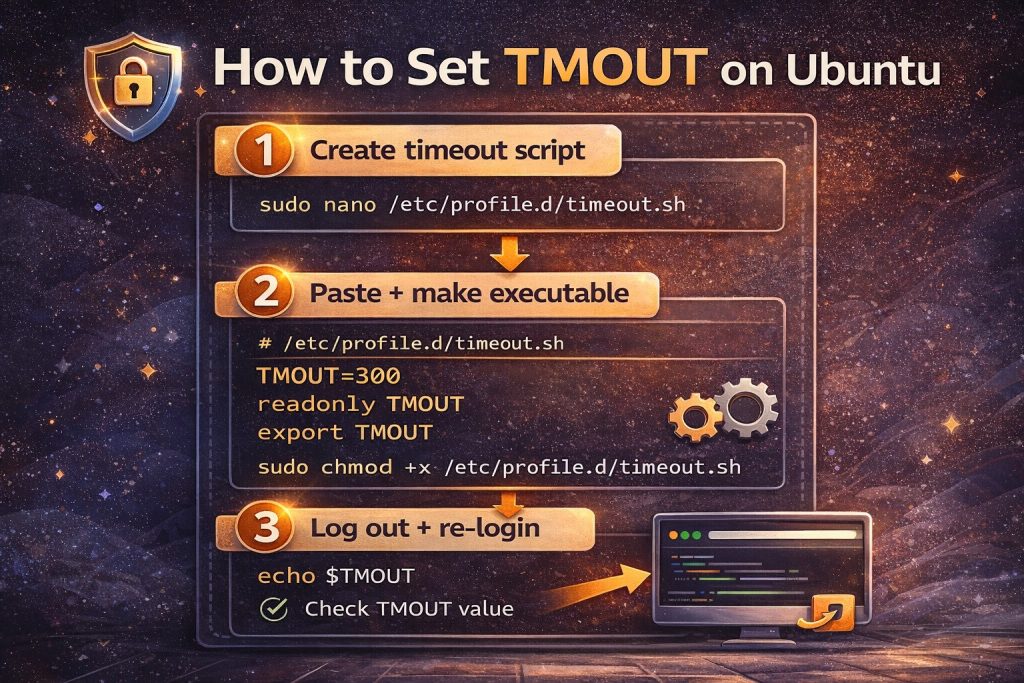
How to set TMOUT automatic logout timeout on Ubuntu (step-by-step)

What TMOUT actually does (so you don’t get surprised)

TMOUT is a Bash timeout value (in seconds). When it’s set, Bash will exit an interactive shell after waiting at the prompt with no input for that amount of time. In other words: it kicks you out when you’re idle at the command prompt — not in the middle of running a long command. :contentReference[oaicite:0]{index=0}

Best way: set a global timeout for all users (recommended)

You can put the setting into /etc/profile (and that’s what many quick answers suggest), but I prefer using a dedicated file in /etc/profile.d/. It’s cleaner and easier to manage later.

Step 1: create a global timeout script

sudo nano /etc/profile.d/timeout.sh

Paste this (5 minutes = 300 seconds):

# Apply only to interactive shells
case $- in
  *i*) ;;
  *) return ;;
esac

TMOUT=300
readonly TMOUT
export TMOUT

Make it executable:

sudo chmod +x /etc/profile.d/timeout.sh

Step 2: log out and log back in (or reconnect via SSH)

Because this is loaded at login time, you need a fresh session to test it. Bash reads /etc/profile (and files like /etc/profile.d/*.sh) when it starts as a login shell. :contentReference[oaicite:1]{index=1}

Test the value:

echo $TMOUT

Now just stop typing at the prompt and wait 5 minutes — it should automatically log you out.

Quick method: add it to /etc/profile (works, but less clean)

If you want the simplest “do exactly what the forum answer says” approach, edit /etc/profile and add these lines at the end:

sudo nano /etc/profile

# Add at the bottom:
TMOUT=300
readonly TMOUT
export TMOUT

This is the same solution from your original How7o thread (set TMOUT=300, make it readonly, export it, then re-login). :contentReference[oaicite:2]{index=2}

Optional: exclude a specific user (like root or a service account)

On some servers I prefer not to enforce auto-logout for a specific automation user (or sometimes root during maintenance). You can add a simple skip rule before setting TMOUT:

# Example: skip root
if [ "$(id -u)" -eq 0 ]; then
  return
fi

Add that near the top of /etc/profile.d/timeout.sh, above the TMOUT lines.

What if users try to bypass it?

That’s why I always include:

  • readonly TMOUT → prevents users from changing it inside their shell
  • export TMOUT → ensures it applies consistently

Bonus: enforce an idle disconnect at the SSH level (different thing)

TMOUT is a Bash behavior. If you also want SSH itself to drop idle connections (even if someone isn’t sitting at a Bash prompt), look at SSH server keepalive options like ClientAliveInterval and ClientAliveCountMax in /etc/ssh/sshd_config. :contentReference[oaicite:3]{index=3}

Related guides (internal links)

  • How to change the welcome message on Ubuntu VPS
  • How to install Docker on AlmaLinux

Final thoughts

If you manage a VPS (or even a shared server), setting an automatic logout timeout for command line in Ubuntu is one of those small hardening steps that pays off forever. I went with 5 minutes (TMOUT=300) because it’s enough time to think, but short enough to protect me from leaving sessions open by accident.


TAGGED:BashLinux HardeningSecuritySSHterminalTMOUTUbuntuvps

Sign Up For Daily Newsletter

Be keep up! Get the latest breaking news delivered straight to your inbox.
By signing up, you agree to our Terms of Use and acknowledge the data practices in our Privacy Policy. You may unsubscribe at any time.
Share This Article
Facebook Copy Link Print
Previous Article Create a Directory in Ubuntu Create a Directory in Ubuntu (mkdir Command + Examples)
Next Article Change welcome message on Ubuntu VPS server (MOTD + SSH banner) Change Welcome Message on Ubuntu VPS (MOTD + SSH Banner)
Leave a Comment

Leave a Reply Cancel reply

Your email address will not be published. Required fields are marked *

FacebookLike
XFollow
PinterestPin
InstagramFollow

Subscribe Now

Subscribe to our newsletter to get our newest articles instantly!
Most Popular
How I Fixed Composer Dependency Errors
How I Fixed Composer Dependency Errors Using the –ignore-platform-reqs Flag (Step-by-Step Guide)
January 12, 2026
Transfer Discourse to a new server
How to Transfer Discourse to a New Server on AlmaLinux (Backup + Restore, Step-by-Step)
January 12, 2026
Installed Discourse on AlmaLinux
How I Installed Discourse on AlmaLinux (Docker Method, Step-by-Step)
January 12, 2026
Installing Docker on AlmaLinux guide
Install Docker on AlmaLinux: Step-by-Step (Docker CE + Compose)
January 12, 2026
Change welcome message on Ubuntu VPS server (MOTD + SSH banner)
Change Welcome Message on Ubuntu VPS (MOTD + SSH Banner)
January 12, 2026

You Might Also Like

Create a Directory in Ubuntu
Server Management

Create a Directory in Ubuntu (mkdir Command + Examples)

4 Min Read
Update Ubuntu to the latest kernel version
Server Management

Update Ubuntu to the Latest Kernel Version (Safe Server Steps)

5 Min Read
Check if GD library is installed in PHP (phpinfo and extension_loaded)
Web Development

How to Check if GD Library Is Installed in PHP (3 Easy Methods)

5 Min Read

Always Stay Up to Date

Subscribe to our newsletter to get our newest articles instantly!
How7o

We provide tips, tricks, and advice for improving websites and doing better search.

Latest News

  • SEO Audit Tool
  • Client ReferralsNew
  • Execution of SEO
  • Reporting Tool

Resouce

  • Google Search Console
  • Google Keyword Planner
  • Google OptimiseHot
  • SEO Spider

Get the Top 10 in Search!

Looking for a trustworthy service to optimize the company website?
Request a Quote
Welcome Back!

Sign in to your account

Username or Email Address
Password

Lost your password?