

I was working on a PHP project (and a bit of WordPress code) and I kept missing my favorite JavaScript habit: console.log(). In JavaScript, I can dump any variable to the browser console instantly. In PHP… I tried the same mindset and quickly realized something important:
- Quick answer: what’s the PHP equivalent of console.log?
- 1) Debug by printing values on the page (fast but messy)
- 2) Use error_log() (best “server-side console.log”)
- 3) Log to a custom file (clean + easy to track)
- 4) My favorite: a reusable log helper function (especially for WordPress)
- 5) WordPress built-in debugging (WP_DEBUG + debug.log)
- Bonus: “console.log” in the browser from PHP (yes, it’s possible)
- My personal rule of thumb (what I use in real projects)
- Final thoughts
PHP runs on the server. JavaScript runs in the browser. So there isn’t a true “console.log equivalent” in PHP the same way there is in JavaScript. But the good news is: you have several solid options depending on what you’re building—and once you use them a few times, debugging becomes way easier.
Quick answer: what’s the PHP equivalent of console.log?
If you just want to “print something to see it,” use:
- echo (simple values)
- print_r() (arrays)
- var_dump() (detailed type + value)
If you want the safer “real debugging” version (especially on servers), use:
- error_log() (logs to PHP/Apache/Nginx error logs)
- a custom log file (when you want your own logfile)
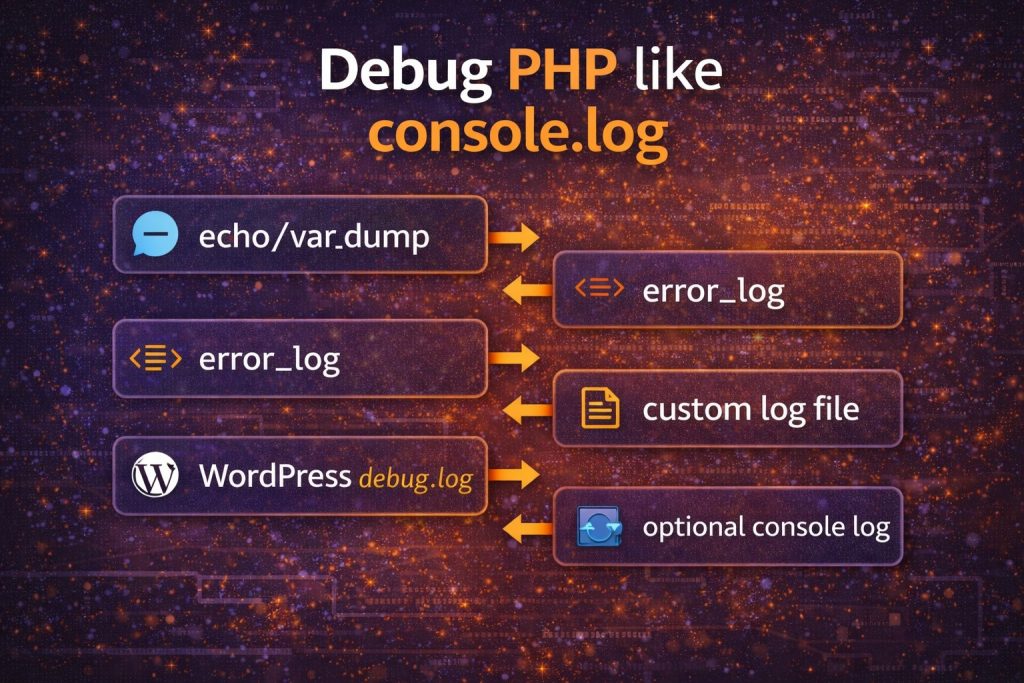
1) Debug by printing values on the page (fast but messy)
This is the closest “quick console.log feeling” if you’re debugging a page request. It works best on local/dev environments.
echo for simple values:
$name = "How7o";
echo $name;
print_r() for arrays (wrap in <pre> so it’s readable):
<pre>
<?php
$data = ["user" => "admin", "role" => "editor"];
print_r($data);
?>
</pre>
var_dump() gives type + value (more detail):
<pre>
<?php
var_dump($data);
?>
</pre>
Warning: Don’t leave these in production pages. Printing sensitive data (tokens, paths, user info) is a real security risk.
2) Use error_log() (best “server-side console.log”)
If I had to recommend just one method for most people, this is it. It doesn’t break your HTML output and it works even when you’re debugging AJAX, cron jobs, background requests, and WordPress hooks.
$message = "Something went wrong!";
error_log($message);
Logging arrays/objects? Convert them to a string first:
error_log(print_r($data, true));Where does it go? Usually into your web server / PHP error logs. Common places are:
/var/log/apache2/error.log(Apache on Ubuntu/Debian)/var/log/nginx/error.log(Nginx)- Or wherever your hosting panel stores PHP logs
3) Log to a custom file (clean + easy to track)
Sometimes I don’t want to dig through system logs. I just want my own file like myapp.log. You can do that in two easy ways.
Option A: error_log() to a file
$message = "Debug message";
error_log($message . PHP_EOL, 3, __DIR__ . "/my-debug.log");
Option B: file_put_contents()
file_put_contents(__DIR__ . "/my-debug.log", "Hello log" . PHP_EOL, FILE_APPEND);Important: make sure the folder is writable by PHP, and don’t store logs in public web directories where anyone can download them.
4) My favorite: a reusable log helper function (especially for WordPress)
When I’m debugging WordPress code, I like having a simple helper I can call anywhere. Here’s a safer, improved version of the “woolog” idea:
function woolog($msg) {
    $file = ABSPATH . 'how7o-debug-' . date("Y-m-d") . '.log';

    if (is_array($msg) || is_object($msg)) {
        $msg = print_r($msg, true);
    }

    $line = "[" . date("H:i:s") . "] " . $msg . PHP_EOL;
    file_put_contents($file, $line, FILE_APPEND);
}
Usage:
woolog("Hook fired!");
woolog($_POST);
woolog($user_object);
This creates daily log files in your WordPress root. If you prefer the safer default location, change it to WP_CONTENT_DIR and keep it away from public access.
5) WordPress built-in debugging (WP_DEBUG + debug.log)
If you’re debugging WordPress specifically, enable logging properly in wp-config.php:
define('WP_DEBUG', true);
define('WP_DEBUG_LOG', true);
define('WP_DEBUG_DISPLAY', false);
Then WordPress writes logs to:
wp-content/debug.logImportant: Turn this off after debugging on production sites. Leaving debug mode enabled can expose warnings/notices and performance issues.
Bonus: “console.log” in the browser from PHP (yes, it’s possible)
Sometimes I’m working in a PHP template and I want the value in the browser console. The trick is: PHP must output JavaScript.
<script>
console.log(<?php echo json_encode($data); ?>);
</script>
This is handy for quick debugging on a dev site. Just don’t forget to remove it—because you might accidentally leak data into the client-side console.
My personal rule of thumb (what I use in real projects)
- Local dev page debugging → var_dump() / print_r() in
<pre> - Server debugging / background hooks → error_log()
- WordPress debugging → WP_DEBUG_LOG + helper logger
- Need it in browser console → echo a tiny
<script>console.log(...)temporarily
Final thoughts
PHP doesn’t have a direct console.log() because it runs on the server, but once you get comfortable with error_log() and proper log files, debugging becomes cleaner than printing random values in your HTML.
If you want, share what you’re debugging (plain PHP app, WordPress plugin/theme, Laravel, etc.) and I’ll suggest the best logging setup for that specific use case.