


I hit a weird one recently: my Laravel app was working fine, then suddenly my browser started showing a 409 Conflict. The strangest part? If I opened the site from a different location (or a different network), everything worked perfectly. The problem followed my computer, not the server.
- What does 409 Conflict mean in Laravel?
- Step 1: Confirm the response is NOT actually coming from Laravel
- Step 2: Fix it on your computer (most common solution)
- A) Clear cookies + site data for your domain
- B) Test in Incognito / Private mode
- C) Disable extensions (ad blockers often break challenges)
- D) Flush DNS + reset network (when it’s tied to your connection)
- Step 3: If you control the server/WAF, whitelist or fix the challenge
- Step 4 (optional): Set the cookie from Laravel (only if you really need it)
- If everyone gets 409 Conflict (server-side Laravel checks)
- Final fix that worked for me
When I inspected the response in DevTools, I noticed something that didn’t look like Laravel at all. Instead of a normal HTML page or JSON response, it was sending a small script that looked like this:
<script>
  document.cookie = "humans_21909=1";
  document.location.reload(true)
</script>
That was the clue. This wasn’t a “real” Laravel 409 coming from my controllers. It was a browser/cookie/security challenge happening in front of the app (usually a WAF, bot protection, or caching layer). Here’s exactly how I fixed it.
What does 409 Conflict mean in Laravel?
HTTP 409 Conflict means the server refused the request because it conflicts with the current state of the resource. In Laravel apps, you can see 409 in a few situations, like version conflicts, duplicate requests, or when something in front of Laravel blocks the request.
In my case, the giveaway was the cookie-setting script. That kind of response usually means a security layer is trying to confirm you’re a real human by setting a cookie and forcing a reload. If that loop breaks (blocked cookies, bad cache, extension interference), you can get stuck in a 409/error page on one device only.
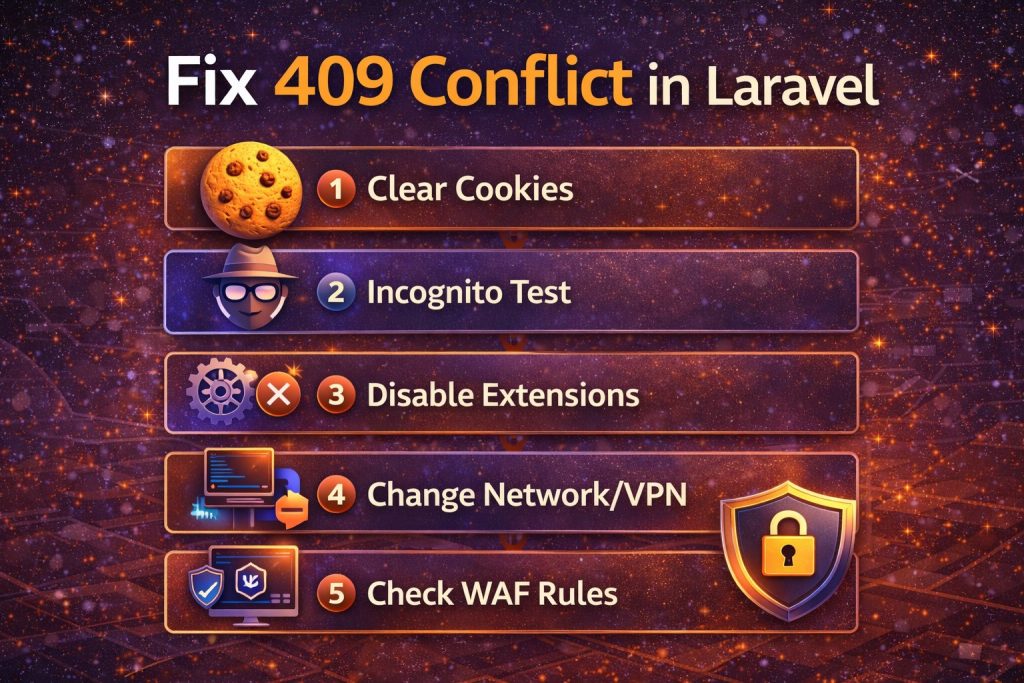
Step 1: Confirm the response is NOT actually coming from Laravel
Before changing any Laravel code, confirm where the response is coming from:
- Open Chrome DevTools → Network
- Reload the page
- Click the request → check the Response tab
If you see the cookie script (or any “challenge” HTML), you’re dealing with a browser/session/security issue. If you see your normal Laravel HTML/JSON, skip to the “Server-side fixes” section further down.
Step 2: Fix it on your computer (most common solution)
Because it only happened on my machine, I treated it like a corrupted cookie/cache issue first.
A) Clear cookies + site data for your domain
- Chrome → Settings → Privacy & Security → Cookies and other site data
- Search your domain → remove stored cookies/site data
Then reopen the site. If the challenge cookie was stuck in a bad state, this usually fixes it instantly.
B) Test in Incognito / Private mode
Incognito starts with a clean cookie jar. If it works in Incognito but not in normal mode, your regular browser profile has something interfering (cookie, extension, cached script).
C) Disable extensions (ad blockers often break challenges)
Ad blockers, privacy extensions, script blockers, and “anti-tracking” tools can block the cookie write or the forced reload. Temporarily disable them and test again.
D) Flush DNS + reset network (when it’s tied to your connection)
If it works on another network but not yours, reset your local networking and try again.
# Windows (run in CMD as Admin)
ipconfig /flushdns

# macOS
sudo dscacheutil -flushcache; sudo killall -HUP mDNSResponder
Also test with VPN OFF (or ON, if your ISP IP is flagged). Sometimes the WAF blocks an IP range temporarily.
Step 3: If you control the server/WAF, whitelist or fix the challenge
If the response is a “human check” cookie, the challenge is coming from something in front of Laravel like:
- Cloud/WAF protection (Cloudflare-style rules)
- Hosting security tools
- Reverse proxy rules (Nginx/Apache)
- Bot protection plugins/services
What I did:
- Checked the response headers to see which service generated the challenge
- Disabled “bot fight / challenge” mode temporarily to confirm the cause
- Whitelisted my IP (or reduced the rule sensitivity)
If this is a production app and real users might hit it too, don’t “hack around it” in Laravel—fix the WAF rule so the app behaves normally.
Step 4 (optional): Set the cookie from Laravel (only if you really need it)
I’ll be honest: I only recommend this if you fully understand why that cookie is required and you own the system that expects it. Otherwise, it’s better to fix the security layer properly.
If you still want to set it in Laravel, create a middleware that ensures the cookie exists. Here’s a clean example.
1) Create middleware
php artisan make:middleware EnsureHumansCookie2) Add code to middleware
<?php

namespace App\Http\Middleware;

use Closure;
use Illuminate\Http\Request;
use Illuminate\Support\Facades\Cookie;

class EnsureHumansCookie
{
    public function handle(Request $request, Closure $next)
    {
        if (!$request->hasCookie('humans_21909')) {
            // Laravel cookie duration is in MINUTES
            Cookie::queue('humans_21909', '1', 60 * 12); // 12 hours
        }

        return $next($request);
    }
}
3) Register middleware
Open app/Http/Kernel.php and add it to the web middleware group (or apply it to specific routes):
protected $middlewareGroups = [
    'web' => [
        // ...
        \App\Http\Middleware\EnsureHumansCookie::class,
    ],
];
Again: this is not the “best fix” for most cases. It’s just a fallback if a system expects that cookie and you want to guarantee it’s present.
If everyone gets 409 Conflict (server-side Laravel checks)
If the 409 happens for all users (not just your machine), then it may be a real application conflict. Here are quick things I check:
- Duplicate form submits: a double POST can trigger conflict logic on the server
- Unique constraint collisions: two requests trying to create the same record
- SPA/version conflicts: some frontends intentionally return 409 when versions mismatch
- Cache layers: stale cached responses returning unexpected scripts/pages
Basic Laravel cleanup (safe to run):
php artisan optimize:clearAnd always check your logs when it affects multiple users:
tail -n 200 storage/logs/laravel.logFinal fix that worked for me
For my case (only broken on my computer + cookie script response), the fix was simple:
- Cleared cookies/site data for the domain
- Disabled one browser extension that was blocking the cookie
- Reloaded the app and everything started working again
If you’re seeing the same humans_21909 cookie script, start with browser cleanup first. In most cases, you won’t need to touch your Laravel code at all.