
I needed this for a support feature in one of my Laravel projects. A customer would report an issue that I couldn’t reproduce easily, and asking for screenshots wasn’t always enough. I wanted a safe “impersonate user” button for admins—so I could log in as that user without knowing their password, check the issue, then jump back to my admin account.
- When would you log in a user programmatically?
- Method 1: Login with a User model (Auth::login)
- Method 2: Login by user ID (Auth::loginUsingId)
- Method 3: One-time login (no session/cookie) with onceUsingId
- The “safe” way: build an admin-only impersonation route
- Common issues (and quick fixes)
- 1) “Auth::loginUsingId returns false / doesn’t work”
- 2) The login works but the session feels “weird”
- Final thoughts
Laravel actually makes this pretty simple. You can log in a user programmatically using the Auth facade. The important part is doing it securely (so you don’t accidentally create a backdoor).
When would you log in a user programmatically?
- Admin impersonation for support/debugging (most common)
- Testing (feature tests, quick local debugging)
- Magic link flows (after you verify a signed token)
- OAuth / SSO callbacks (user is already verified by provider)
Security warning: Never expose a public route like /login-as/1. If you implement this, lock it behind admin authorization and log every impersonation action.
Method 1: Login with a User model (Auth::login)
This is the cleanest approach when you already have the user object.
use Illuminate\Support\Facades\Auth;
use App\Models\User;

$user = User::find(1);

if (!$user) {
    abort(404);
}

Auth::login($user); // now you're logged in as this user

return redirect()->route('dashboard');
Remember me? If you want the “remember” cookie behavior, pass true:
Auth::login($user, true);Method 2: Login by user ID (Auth::loginUsingId)
If you only have the user ID, Laravel can retrieve the user internally and authenticate them:
use Illuminate\Support\Facades\Auth;

Auth::loginUsingId(1);

return redirect('/');
And just like login(), you can also pass true to enable the “remember me” cookie:
Auth::loginUsingId(1, true);Method 3: One-time login (no session/cookie) with onceUsingId
Sometimes you want to authenticate a user for a single request only (no session, no cookies). This is useful for very specific internal actions or API-like flows:
use Illuminate\Support\Facades\Auth;

Auth::onceUsingId(1);

// user is authenticated only for this request
return response()->json([
    'user_id' => Auth::id(),
]);
The “safe” way: build an admin-only impersonation route
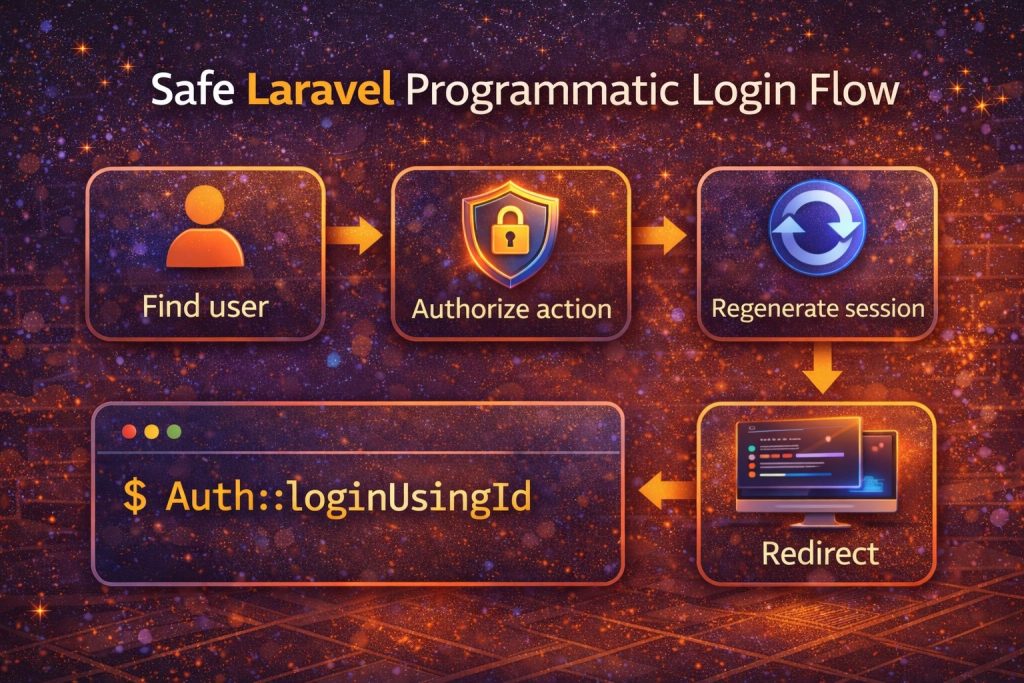
This is the pattern I prefer. The idea is simple:
- Only admins can access the route
- Store the original admin ID in session so you can “switch back”
- Regenerate session to avoid session fixation
- Log who impersonated whom
Route
// routes/web.php
Route::post('/admin/impersonate/{user}', [AdminImpersonateController::class, 'start'])
    ->middleware(['auth', 'can:impersonate-users']);
Controller
use Illuminate\Http\Request;
use Illuminate\Support\Facades\Auth;
use App\Models\User;

class AdminImpersonateController
{
    public function start(Request $request, User $user)
    {
        // Save original admin ID so we can switch back later
        $request->session()->put('impersonator_id', Auth::id());

        // Login as the target user
        Auth::login($user);

        // Good practice: regenerate session after changing auth identity
        $request->session()->regenerate();

        // Optional: log the action for auditing
        // logger()->info('Impersonation started', [
        //     'admin_id' => $request->session()->get('impersonator_id'),
        //     'user_id'  => $user->id,
        // ]);

        return redirect()->route('dashboard');
    }
}
Switch back route (optional)
// routes/web.php
Route::post('/admin/impersonate/stop', function (Request $request) {
    $adminId = $request->session()->pull('impersonator_id');

    abort_if(!$adminId, 403);

    Auth::loginUsingId($adminId);
    $request->session()->regenerate();

    return redirect('/admin');
})->middleware('auth');
Common issues (and quick fixes)
1) “Auth::loginUsingId returns false / doesn’t work”
- Make sure the user exists in the same database your auth provider uses.
- Confirm you’re using the correct guard (web vs custom guard).
- If you’re using multiple guards, call:
Auth::guard('web')->loginUsingId($id);
2) The login works but the session feels “weird”
When switching identities (especially impersonation), regenerate the session after logging in:
$request->session()->regenerate();Final thoughts
Laravel makes it easy to log in users programmatically with Auth::login($user) or Auth::loginUsingId($id). Just remember: the code is simple, but the security around it is what matters. If you keep it admin-only, audit it, and avoid exposing it publicly, it can be a really useful tool for support and debugging.