
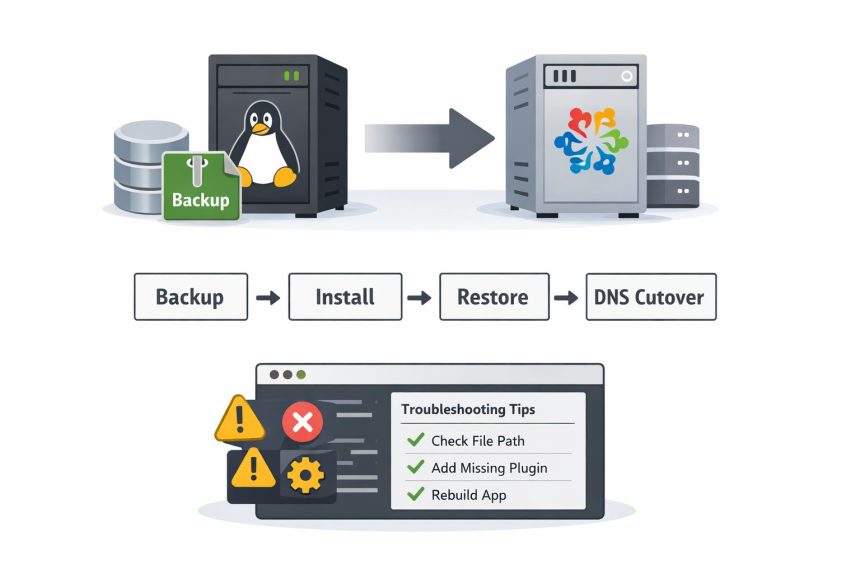
I recently had to move a self-hosted Discourse forum from an old server to a brand-new VPS running AlmaLinux. The goal was simple: keep everything—users, posts, uploads, settings—without turning it into a weekend-long disaster.
- What you need before you start
- Step 1: Freeze changes (optional but recommended) + take a backup
- Step 2: Prepare the new AlmaLinux server
- Step 3: Install Discourse on the new server
- Step 4: Transfer the backup file to the new server
- Step 5: Restore the backup on the new server
- Method A: Restore from the admin panel (easy)
- Method B: Restore from the command line (my favorite for migrations)
- Step 6: DNS cutover (switch domain to the new server)
- Quick troubleshooting (the stuff that usually goes wrong)
- 1) Backup file doesn’t show up in the restore list
- 2) Everything restored, but plugin features are missing
- 3) 502 / site not loading after migration
- Command cheat sheet
- Final checklist (before you call it “done”)
I already had Discourse installed via Docker on the old server, but the part that made me nervous was the migration: “What if I restore it and half the images are missing?” or “What if users can’t log in?”
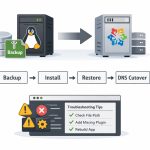
Good news: if you do it in the right order, moving Discourse is basically a backup → install → restore process, plus a couple of gotchas (plugins, DNS TTL, and email). Here’s the step-by-step guide I followed.
What you need before you start
- Root/sudo access to both servers
- Your Discourse admin account
- A little downtime window (even 15–30 minutes helps)
- Enough disk space on the new server for the backup + rebuild
- Ports open: 80/443 for web, 22 for SSH
Pro tip: Before moving, lower your DNS TTL (for example, 300 seconds). That way, when you switch the A record to the new server, most users will land on the new IP quickly. :contentReference[oaicite:1]{index=1}
Step 1: Freeze changes (optional but recommended) + take a backup
If your forum is active, the safest move is to temporarily enable read-only mode so new posts don’t appear while you’re taking the final backup. This isn’t mandatory, but it makes the migration cleaner. :contentReference[oaicite:2]{index=2}
Now take a fresh backup from the Discourse admin panel:
- Go to Admin → Backups
- Click Backup
- Wait for it to finish, then download the backup to your computer
This is the same basic method from your original post, and it’s still the simplest approach for most migrations. :contentReference[oaicite:3]{index=3}
Important: Don’t rename the backup file. Discourse treats the filename as metadata, and restore can fail if you change it.
If you prefer doing it with SSH (or your web UI isn’t accessible), Discourse also documents restoring from the command line, which is handy during server moves. :contentReference[oaicite:4]{index=4}
Step 2: Prepare the new AlmaLinux server
On the new server (AlmaLinux), update packages first:
sudo dnf --refresh update -yThen install Docker. One common approach on AlmaLinux/Rocky is adding Docker’s repo and installing Docker CE packages. :contentReference[oaicite:5]{index=5}
# Add Docker repo
sudo dnf -y install dnf-plugins-core
sudo dnf config-manager --add-repo=https://download.docker.com/linux/centos/docker-ce.repo

# Install Docker
sudo dnf install -y docker-ce docker-ce-cli containerd.io docker-compose-plugin

# Enable and start Docker
sudo systemctl enable --now docker
Quick sanity check:
docker --version
systemctl status docker
Step 3: Install Discourse on the new server
Discourse’s most common self-hosted setup uses the official Docker tooling and the launcher commands (start/stop/rebuild/enter/logs). :contentReference[oaicite:6]{index=6}
Clone the Discourse Docker repository into /var/discourse:
sudo git clone https://github.com/discourse/discourse_docker.git /var/discourse
cd /var/discourse
Now you have two practical options:
- Option A (fastest): copy your old server’s
containers/app.ymlto the new server, then rebuild - Option B: run the setup wizard (
./discourse-setup) and configure from scratch
I usually do Option A because it keeps your settings consistent (domain, SMTP, limits, etc.).
Don’t forget your plugins (this is where people get burned)
If you use plugins, make sure the same plugin entries exist on the new server in /var/discourse/containers/app.yml. Your original post called this out, and it matters—restoring a backup without the right plugin setup can cause weird behavior after the restore. :contentReference[oaicite:7]{index=7}
Example plugin block (inside hooks: → after_code:):
hooks:
  after_code:
    - exec:
        cd: $home/plugins
        cmd:
          - sudo -E -u discourse git clone https://github.com/discourse/docker_manager.git
          - sudo -E -u discourse git clone https://github.com/discourse/discourse-solved.git
After updating plugins or config, rebuild the app:
cd /var/discourse
./launcher rebuild app
The launcher tool is the “control panel” for your containers (start/stop/rebuild/enter/logs), and it’s worth getting comfortable with it. :contentReference[oaicite:8]{index=8}
Step 4: Transfer the backup file to the new server
If you downloaded the backup to your computer, upload it to the new server into this directory:
mkdir -p /var/discourse/shared/standalone/backups/defaultThat’s the standard backup location for a single-container (“standalone”) Discourse install. :contentReference[oaicite:9]{index=9}
Example upload with SCP:
scp /path/to/your-backup.tar.gz root@NEW_SERVER_IP:/var/discourse/shared/standalone/backups/default/Step 5: Restore the backup on the new server
Now restore the backup using one of these methods:
Method A: Restore from the admin panel (easy)
- Open the new Discourse site
- Go to Admin → Backups
- Upload the backup (if it’s not already visible)
- Click Restore
This matches the flow from your original post: restore from Admin → Backups on the new server. :contentReference[oaicite:10]{index=10}
Method B: Restore from the command line (my favorite for migrations)
If you want a more “server admin” approach (or your UI isn’t cooperating), Discourse documents a CLI restore process. :contentReference[oaicite:11]{index=11}
cd /var/discourse
./launcher enter app
discourse enable_restore
discourse restore YOUR-BACKUP-FILENAME.tar.gz
exit
After restoring, rebuild once more to apply config cleanly:
cd /var/discourse
./launcher rebuild app
One more thing: after a restore, Discourse may disable outgoing email for safety until you re-enable it in settings. :contentReference[oaicite:12]{index=12}
Step 6: DNS cutover (switch domain to the new server)
Once the new server is working and you’ve logged in successfully:
- Update your domain’s A record to the new server IP
- Wait for DNS propagation (TTL helps here)
- Watch traffic + error logs for the first hour
If you enabled read-only mode earlier, you can disable it after you’re confident everything is stable. :contentReference[oaicite:13]{index=13}
Quick troubleshooting (the stuff that usually goes wrong)
1) Backup file doesn’t show up in the restore list
- Confirm it’s in
/var/discourse/shared/standalone/backups/default:contentReference[oaicite:14]{index=14} - Confirm you didn’t rename the file (restore can fail if you do) :contentReference[oaicite:15]{index=15}
2) Everything restored, but plugin features are missing
Almost always: the plugin list wasn’t added back into app.yml before the rebuild. Add plugins, then run:
cd /var/discourse
./launcher rebuild app
This “plugins → rebuild” flow is exactly what you had in the original post, and it’s still the right fix. :contentReference[oaicite:16]{index=16}
3) 502 / site not loading after migration
- Check logs:
./launcher logs app:contentReference[oaicite:17]{index=17} - Make sure ports 80/443 are open and nothing else is occupying them
- Rebuild once more:
./launcher rebuild app
Command cheat sheet
# Discourse folder
cd /var/discourse

# Rebuild the container (most used)
./launcher rebuild app

# See logs
./launcher logs app

# Enter container shell
./launcher enter app

# Start/stop
./launcher start app
./launcher stop app
Final checklist (before you call it “done”)
- Login works (admin + normal user)
- Images/uploads load on old and new posts
- Email sending is enabled and tested (password reset email is a good test)
- Plugins appear and features work
- DNS points to the new server (and TTL can be raised again later)
- Old server is kept for a few days (just in case)
That’s it—once you’ve done a clean backup, installed Discourse properly on the new box, restored the same file, and rebuilt with your plugins, moving Discourse to a new AlmaLinux server is surprisingly painless.